Your UAN password is your gateway to the EPFO Member Portal. Whether you are checking your PF balance, raising a withdrawal claim, initiating a PF transfer, or verifying that your employer has been contributing correctly, you need that password to get in.
Yet thousands of employees get locked out every month. The most common reasons: forgotten password, mobile number that has changed since UAN activation, or simply never having set up a strong password in the first place.
This guide walks through everything you need to know about your UAN password, how to reset it, what to do when the reset fails, and how to keep your account secure.
Why Your UAN Password Matters
Logging in to the EPFO Member Portal with your UAN and password gives you access to:
- PF balance and contribution history across all employers
- Passbook download for any linked Member ID
- Online PF withdrawal claims (Form 19, Form 31, Form 10C)
- PF transfer requests (One Member, One EPF Account)
- EPS service history and pension eligibility status
- KYC details and Aadhaar/PAN linking status
- Date of Exit updates and service record corrections
Without your password, none of these functions are accessible online. Any claim or transfer will need to be filed manually through your employer or by physically visiting an EPFO office.
What Is the UAN Password?
Activating your UAN on the EPFO Member Portal for the first time. It is separate from your UAN itself, which is a number provided by your employer.
To activate your account and set your password, you need:
- Your UAN (12-digit number, available on your salary slip or from your HR team)
- Your Aadhaar-linked mobile number (OTP is sent to this number)
UAN Password Format Requirements
EPFO enforces strict password rules. Your password must be:
| Rule | Requirement |
|---|
| Length | 8 to 25 characters |
| Uppercase letter | At least 1 (A-Z) |
| Lowercase letter | At least 1 (a-z) |
| Number | At least 1 (0-9) |
| Special character | At least 1 (@, #, $, %, !, etc.) |
Abcd@1234
Avoid predictable patterns like Password@123 or your name followed by numbers. These may be rejected or flagged as unsafe.
3 Ways to Reset or Change Your UAN Password
Method 1: Forgot Password (Most Common)
Use this if you cannot remember your current password and are locked out of the portal.
1. Go to the EPFO Member Portal
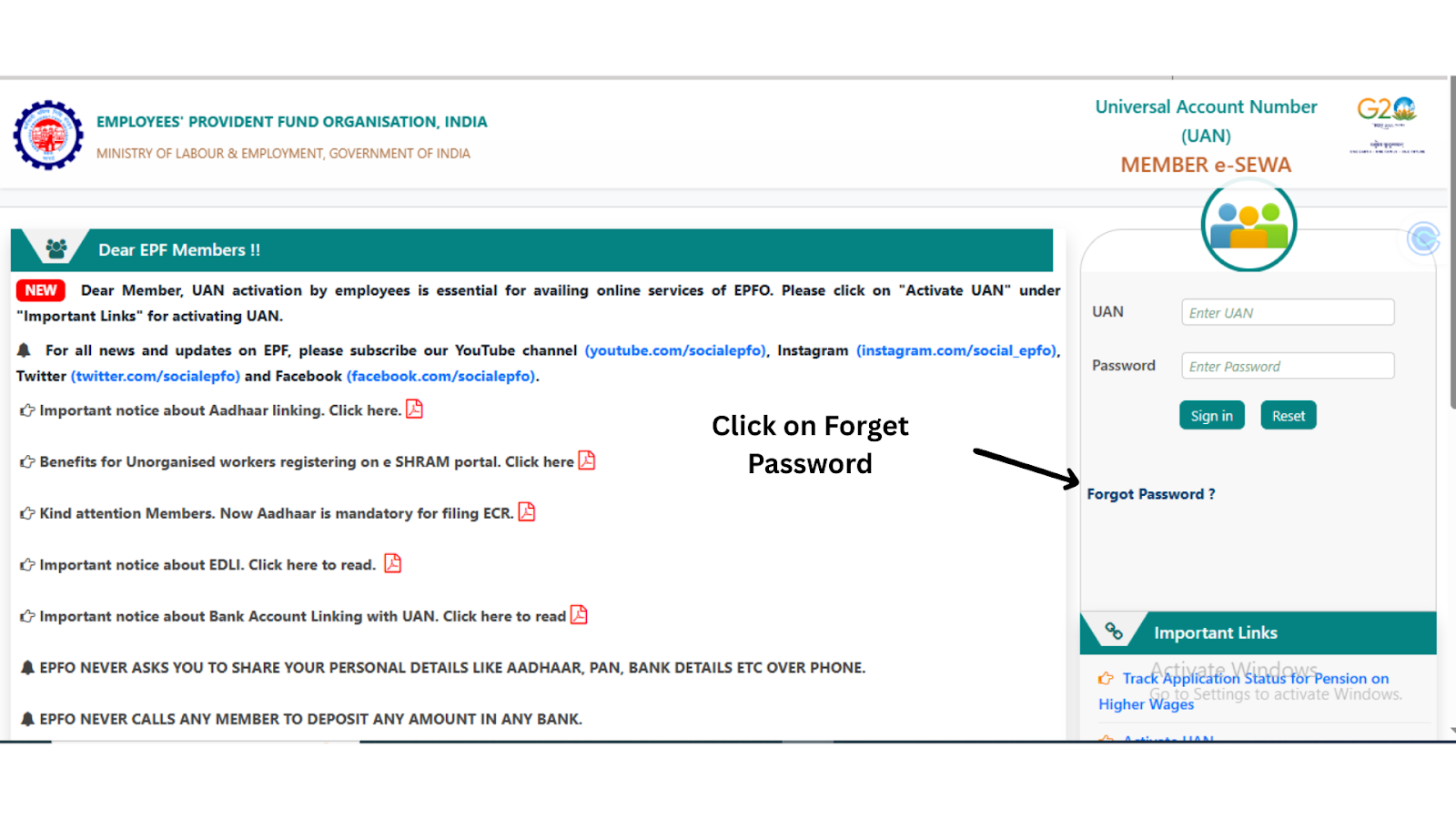
2. Click Forgot Password below the login form.
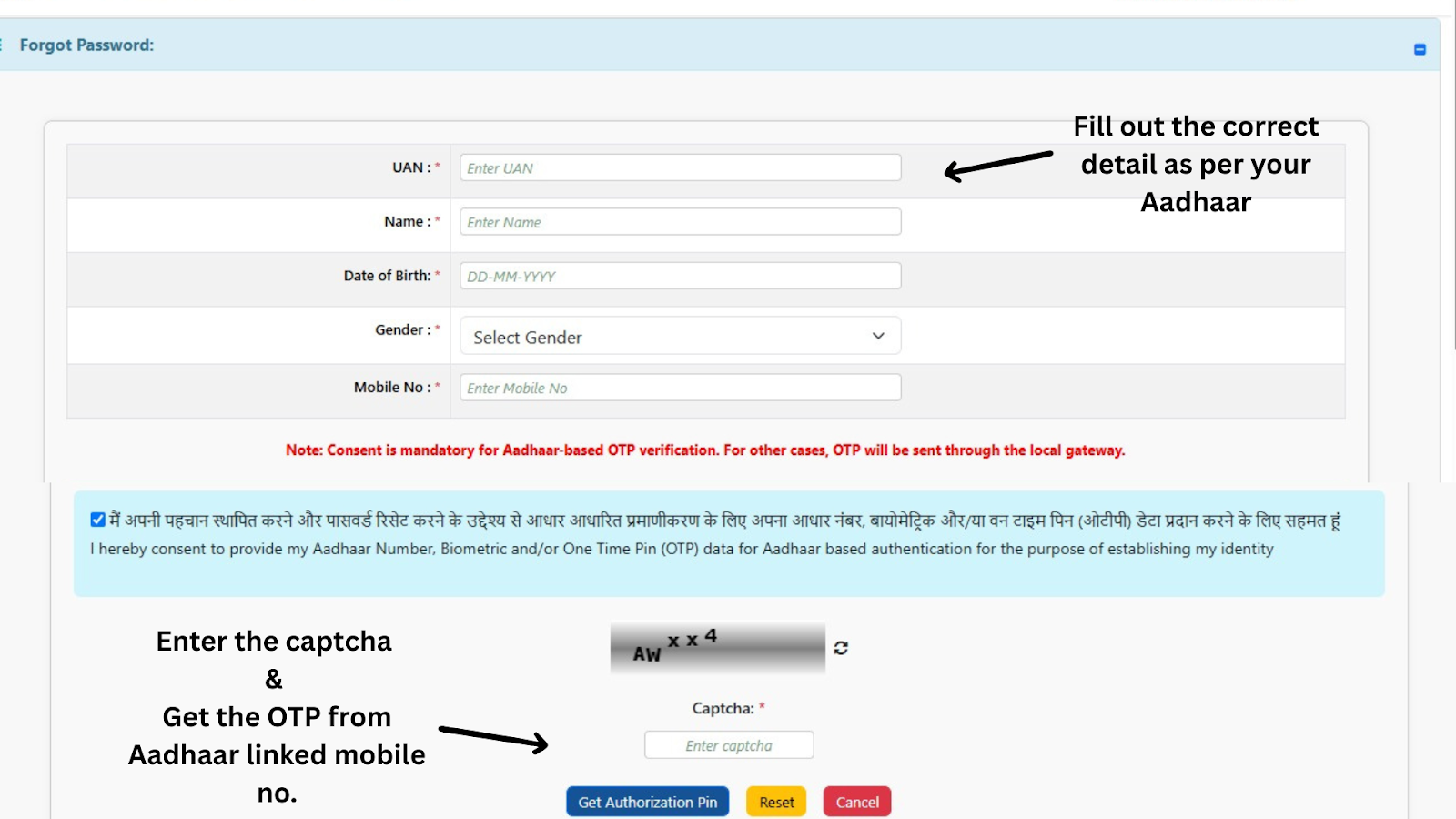
3. Enter the following details:
- UAN (12-digit number)
- Name as per Aadhaar
- Date of Birth
- Gender
- Registered mobile number linked to Aadhaar
4. Enter the OTP sent to your registered mobile number.
5. Set a new password that meets EPFO's format requirements.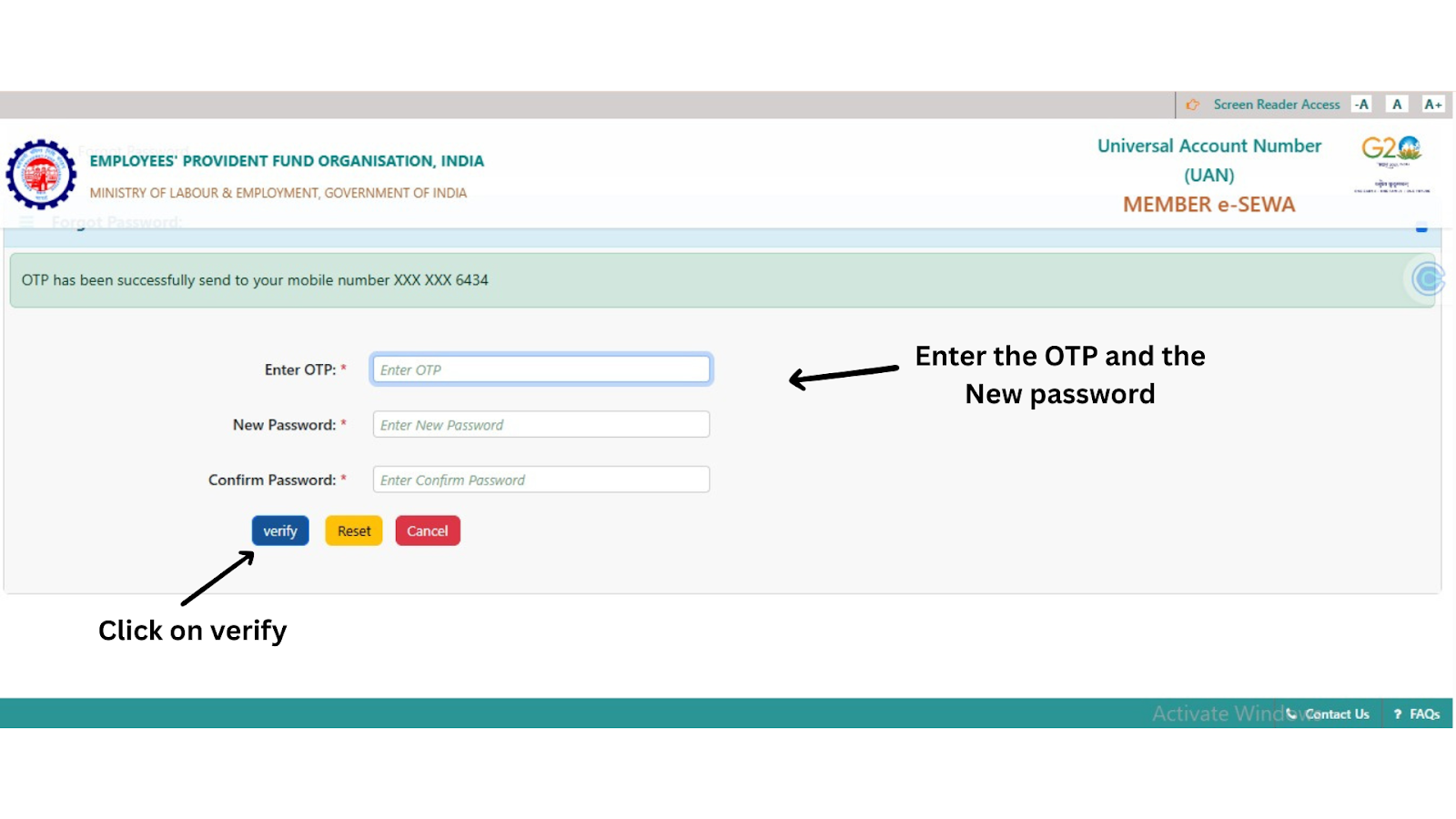
6. Click Submit to complete the reset.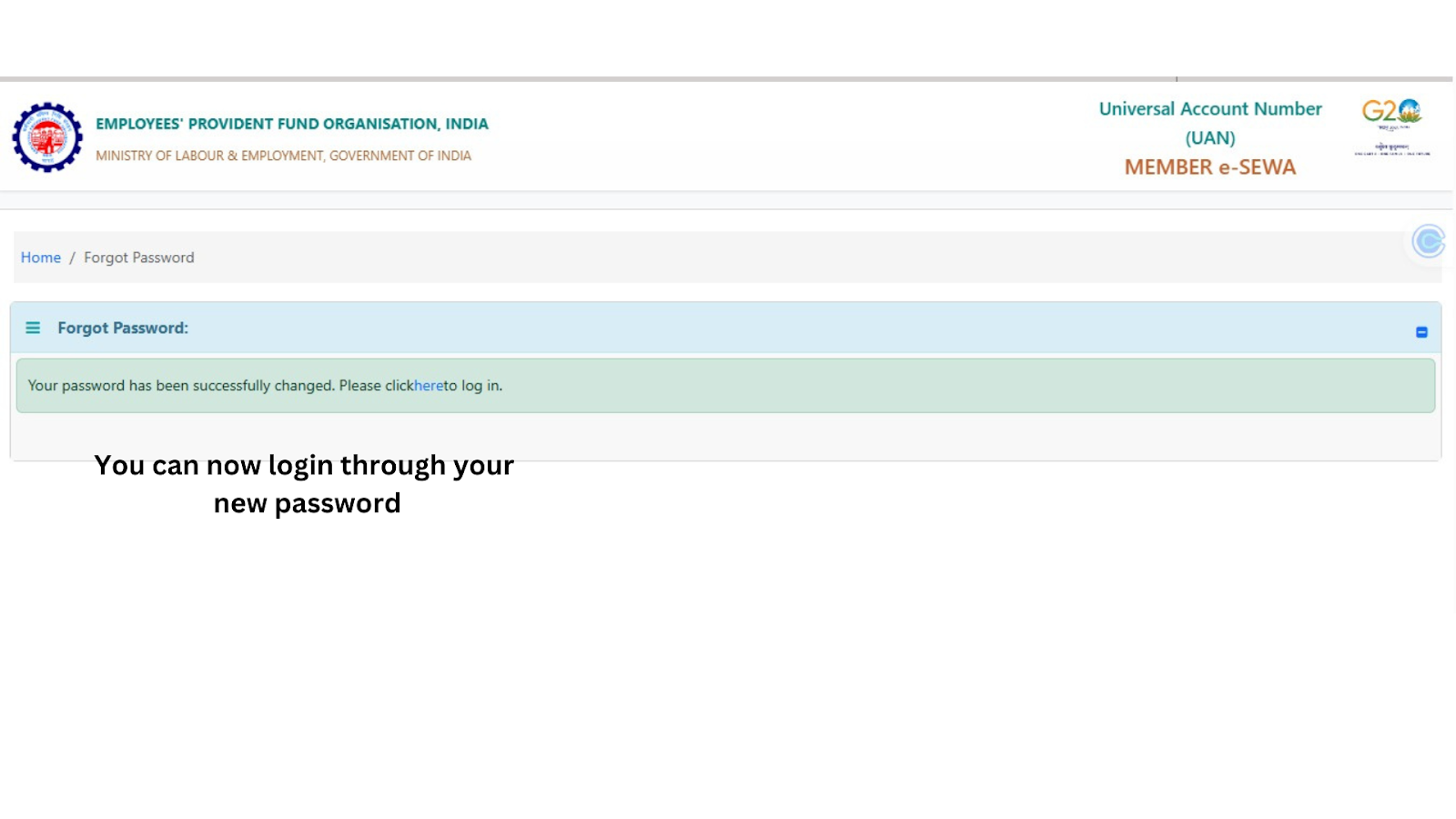
📌 Takes effect immediately on Member Portal. Passbook may take up to 6 hours to reflect.
Change Password After Login (Recommended Every 2 Months)
It’s good practice to change your password regularly for security.
- Log in with your existing password
- Go to: Account > Change Password
- Enter old and new passwords
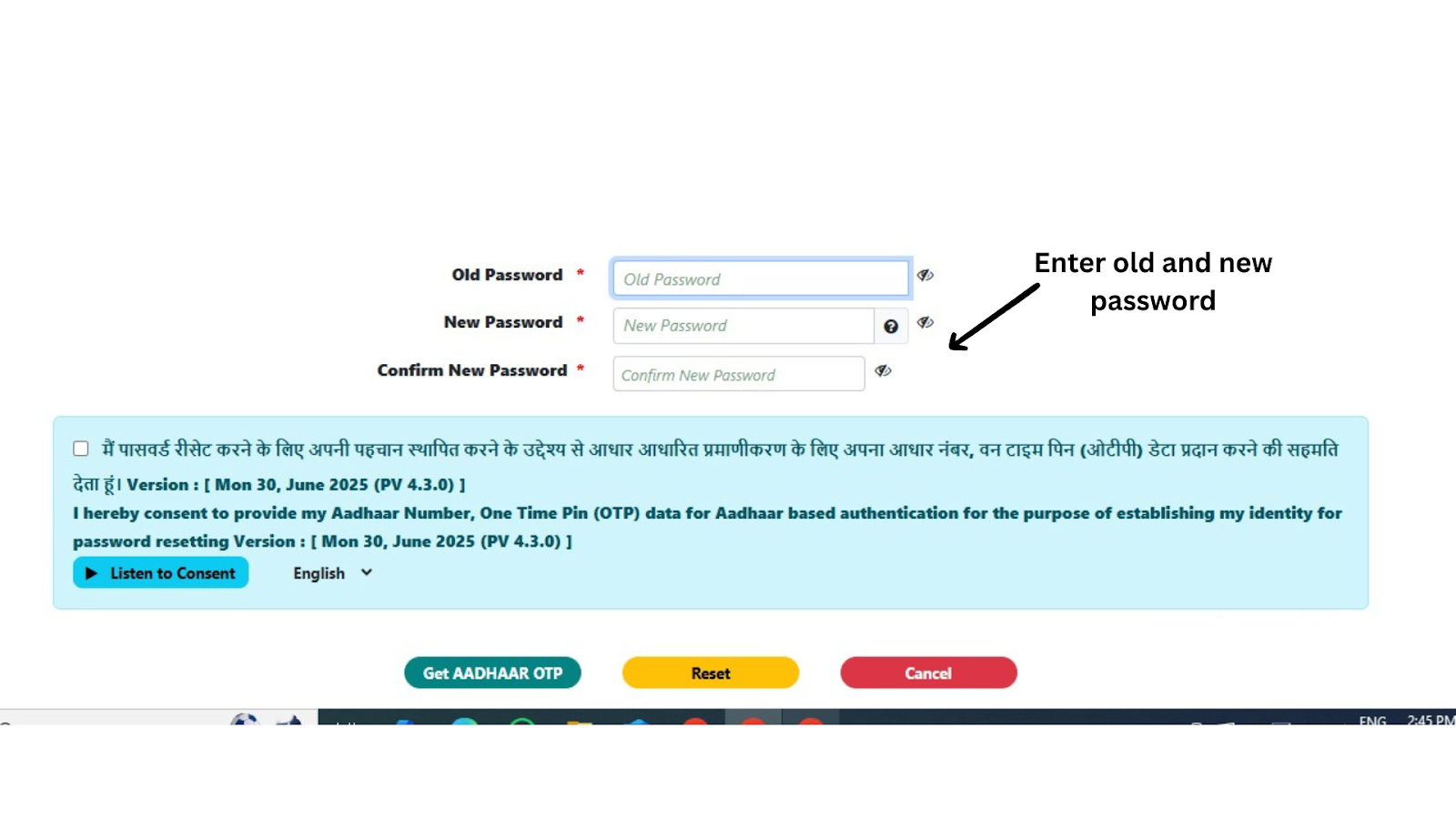
The new password takes effect immediately on the Member Portal. Your passbook may take up to 6 hours to reflect the updated login.
Method 2: Change Password After Login (Recommended Every 2 Months)
Use this if you know your current password but want to update it for security.
7. Log in to the EPFO Member Portal with your existing credentials.
8. Go to Account > Change Password.
9. Enter your current password, then your new password twice.
10. Click Submit.
Changing your password every 60 days reduces the risk of unauthorized access, especially if you use shared devices or public networks.
Method 3: EPFO's 60-Day Reset Prompt
EPFO periodically prompts users to update their password after 60 days of inactivity or on a scheduled rotation. When this prompt appears on login, follow the on-screen steps to set a new password. It follows the same OTP and format requirements as Method 1.
Requirements to Reset Your Password
| Requirement | Details |
|---|
| UAN | Your 12-digit Universal Account Number. Find it on your salary slip, Form 16, or by asking HR. |
| Aadhaar-linked mobile number | The mobile number registered with Aadhaar and linked to your UAN. OTP is sent only to this number. |
| Name as per Aadhaar | Must match exactly with your Aadhaar. Even minor spelling differences will cause a mismatch error. |
| Date of Birth | Must match your EPFO profile, which is usually taken from your Aadhaar. |
| Gender | As recorded in your EPFO profile. |
Important: Mobile number update
If your mobile number has changed since UAN activation and is no longer linked to Aadhaar, the OTP reset will not work. You must first ask your employer to update your mobile number through the Employer Portal. This cannot be done by the employee directly.
How Long Does It Take to Reflect?
| Action | Reflection Time |
|---|
| Password reset / change on Member Portal | Immediate |
| Updated login reflected on Passbook Portal | Up to 6 hours |
| Mobile number update by employer | 24 to 48 hours after employer submission |
| KYC or profile changes linked to UAN | Up to 72 hours depending on EPFO processing |
If you have reset your password successfully but still get a login error on the Passbook Portal, wait up to 6 hours and try again before assuming something has gone wrong.
Common Reset Errors and How to Fix Them
"UAN does not exist"
Your UAN has not been activated, or you have entered it incorrectly.
Know Your UAN tool with your Aadhaar or PAN to retrieve the correct UAN. You can also read our guide on how to find your UAN for a step-by-step walkthrough.
"Mobile number not linked"
EPFO sends OTPs only to the Aadhaar-linked mobile number associated with your UAN. If your current number is different, the OTP will not arrive.
Update your KYC on EPFO if other details are also outdated. Once updated, wait 24 to 48 hours before attempting the reset.
"Details not matching"
Your name, date of birth, or Aadhaar number may not match what is recorded in EPFO's system.
Joint Declaration request through your employer to update the records in EPFO.
"OTP not received"
Possible causes include network issues, an inactive SIM, or high traffic on the EPFO server.
Fix: Confirm your mobile number is Aadhaar-linked, active, and has network coverage. Try again during non-peak hours. If the issue persists, check with your employer whether the registered number on EPFO records matches your current number.
Best Practices for Your UAN Account Security
- Update your registered mobile number and email address with EPFO whenever they change. Do not wait until you are locked out.
- Change your password every 60 days. EPFO prompts this automatically, but you can do it proactively from Account > Change Password.
- Use a password manager to store your UAN credentials securely if you tend to forget login details.
- Never share your UAN password with anyone, including HR representatives. FinRight staff will also never ask for your password.
- Use CheckMyPF to review your PF balance and contribution status once you regain access, to ensure everything is in order.
Final Word
Your UAN password is the single point of access to your entire EPF account. A forgotten or outdated password does not just cause inconvenience, it can delay withdrawals, block transfers, and leave you without visibility into your own retirement savings.
The fix is usually straightforward, provided your Aadhaar-linked mobile number is current. If it is not, your employer is the first step. Everything else can be resolved from there.
If you are facing an issue beyond a simple reset, FinRight's EPF specialists can help diagnose and resolve it. We have resolved 7,000+ EPF cases including UAN corrections, KYC mismatches, and mobile number update disputes.
Stay Updated: Follow FinRight across platforms for the latest EPFO circulars, interest rate updates, claim tips, and member advisories: Reddit | X (Twitter) | Instagram | LinkedIn | Facebook | YouTube